Abstract: This post is all about how to configure Datalab on google cloud.
Please follow below sets for configuring datalab on google cloud
Configuration Steps:
Step 1. Create a Project
Go to https://cloud.google.com. Will take you to google cloud home page.

Go to Console

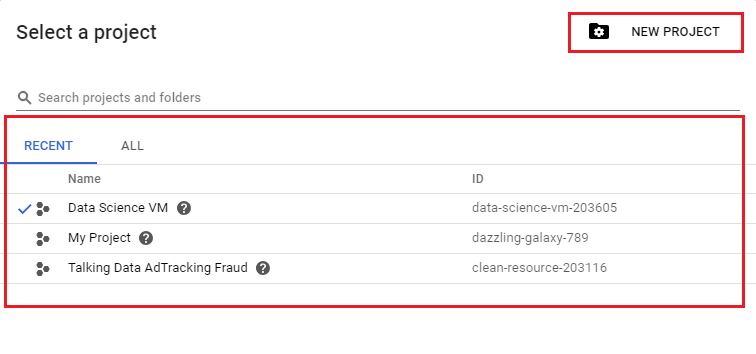
Click on highlighted area to create a new project or selecting an existing project

You can either create a New Project or select from Recent or All existing projects.
Step 2. Enable Billing
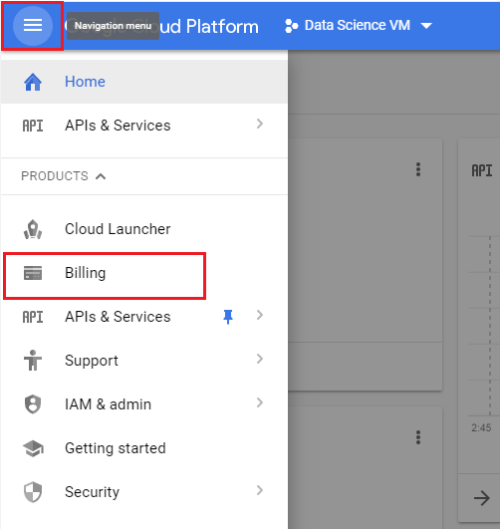
Click on Navigation Menu and select Billing
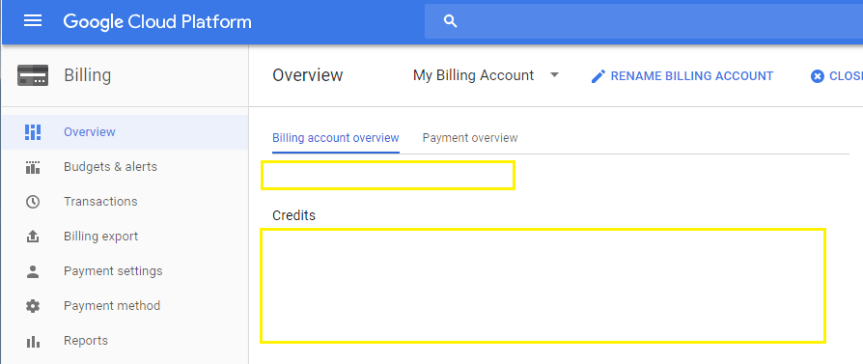
This will take you to Billing Overview.
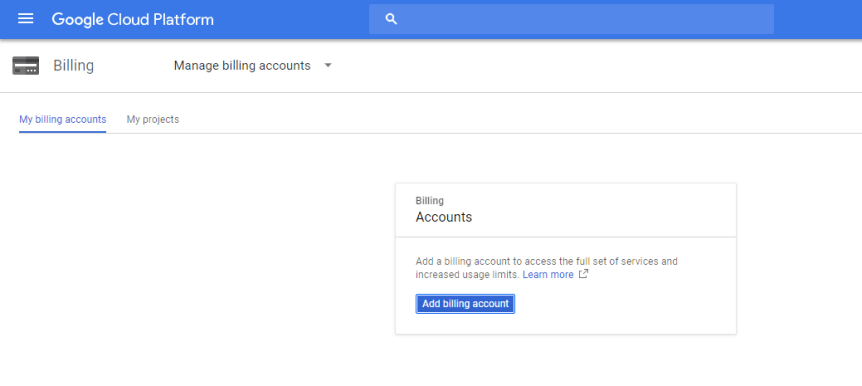
If Billing is not enabled, you will be requested to enable billing.
Step 3. Enable Compute Engine API
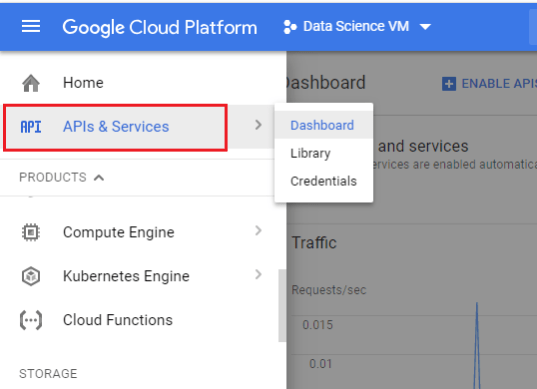
Go to APIs & Services from Navigation Menu
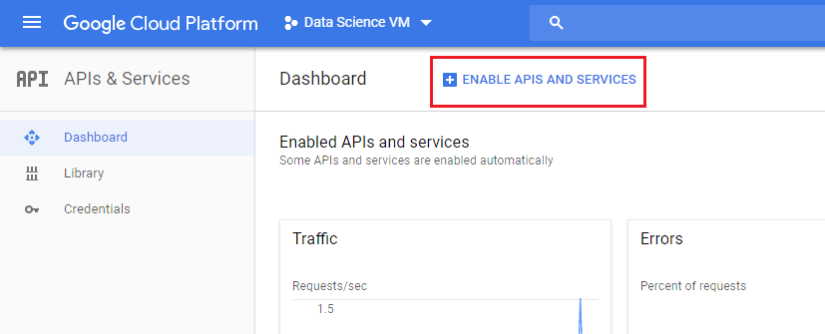
Click on ENABLE APIS AND SERVICES
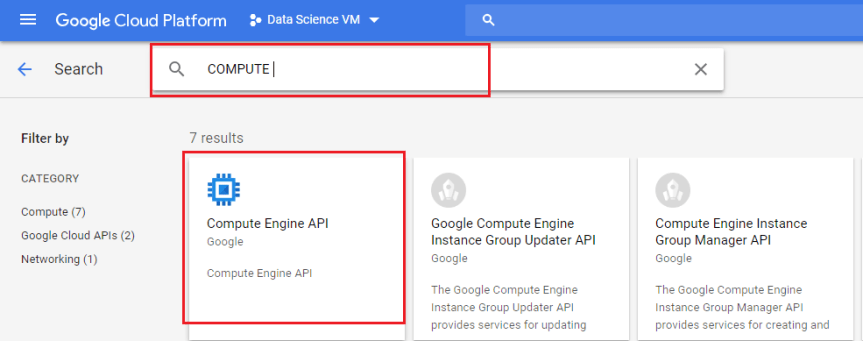
Search for Compute Engine API and Click on Compute Engine API, as highlighted in below screenshot.
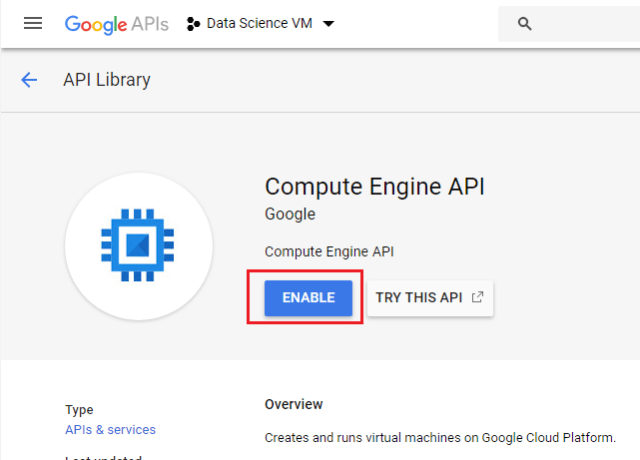
Click on Enable to enable Compute Engine API
Step 4. Triggering Datalab instance
Activate Google Cloud Shell

Shell will be launched for current project
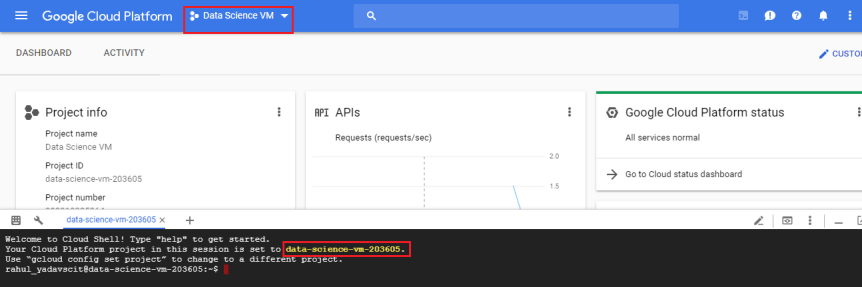
Then type
$ datalab create <instance name>
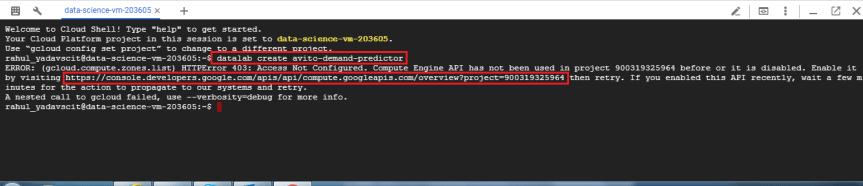
Note: If Compute Engine API is not enabled. System will ask you to enable Compute Engine API
Options for create command
datalab create [-h] [--image-name IMAGE_NAME] [--disk-name DISK_NAME]

[--disk-size-gb DISK_SIZE_GB] [--network-name NETWORK_NAME]

[--idle-timeout IDLE_TIMEOUT] [--machine-type MACHINE_TYPE]

[--no-connect] [--no-backups] [--no-create-repository]

[--log-level {trace,debug,info,warn,error,fatal}]

[--for-user FOR_USER] [--service-account SERVICE_ACCOUNT]

[--port PORT] [--max-reconnects MAX_RECONNECTS]

[--ssh-log-level {quiet,fatal,error,info,verbose,debug,debug1,debug2,debug3}]

[--no-launch-browser] [--project PROJECT] [--quiet]

[--verbosity {debug,info,warning,error,critical,none}]

[--zone ZONE]

NAME
For syntax to create custom Virtual Machine check following link
https://cloud.google.com/datalab/docs/reference/command-line/create
Step 5. System will ask you to select the zone
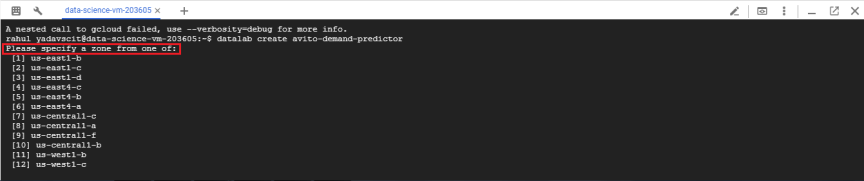
Enter number corresponding to selected zone
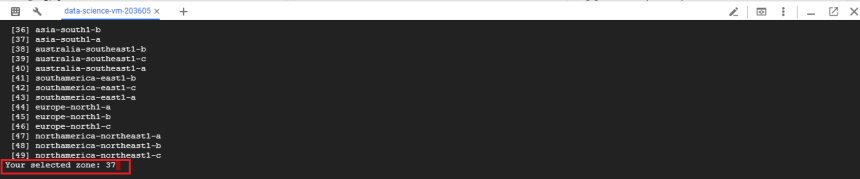
Google Cloud will create a VM in back end and start SSH key propagation. This may take few mins.
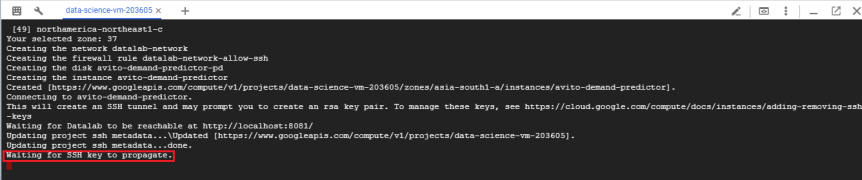
Note: If you face issue related to SSH key propagation or SSH passphrase. Recommended solution is to remove SSH key and compute again with blank passphrase. To keep blank passphrase press enter.
To remove SSH Key
$ rm ~/.ssh/google_compute_engine*
Then compute again
$ gcloud compute config-ssh
Step 6. Launching Datalab Web interface
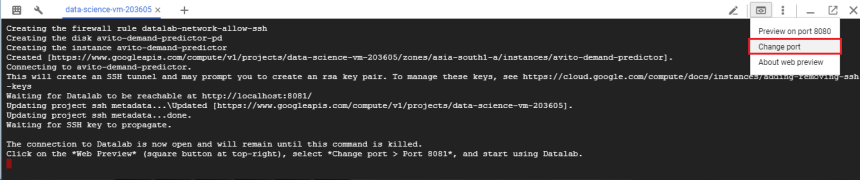
Highlighted message indicates backend configuration is done and you are good to use Datalab

Go to Web Preview and Change port to as given in message
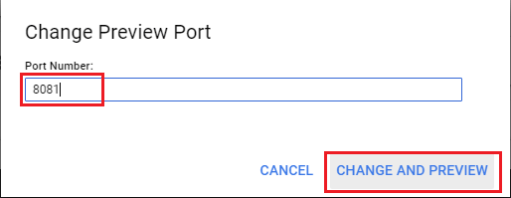
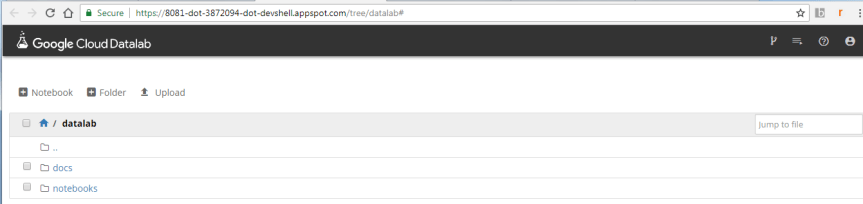
Step 7. This will take you to Datalab web interface
Categories: Google Cloud
 SCIENCE FOR DATA
Useful and easy to understand. Thanks for sharing.
LikeLiked by 1 person